



RADIOBOSS - RADIO AUTOMATION SOFTWARE

(click to enlarge)
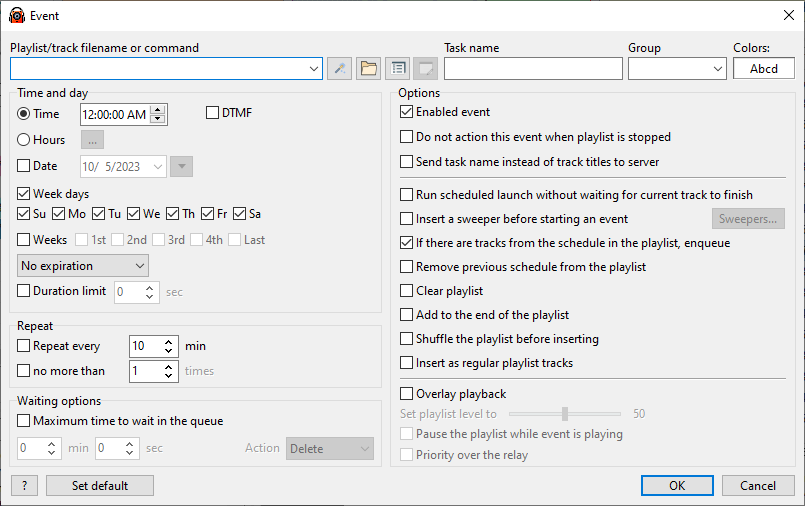
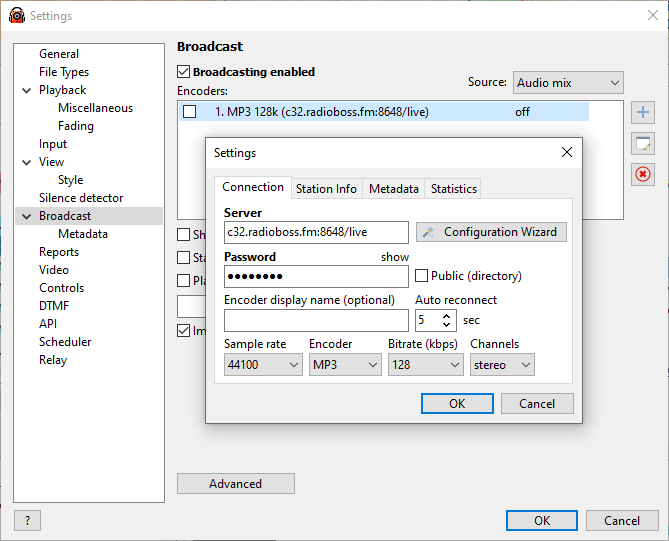
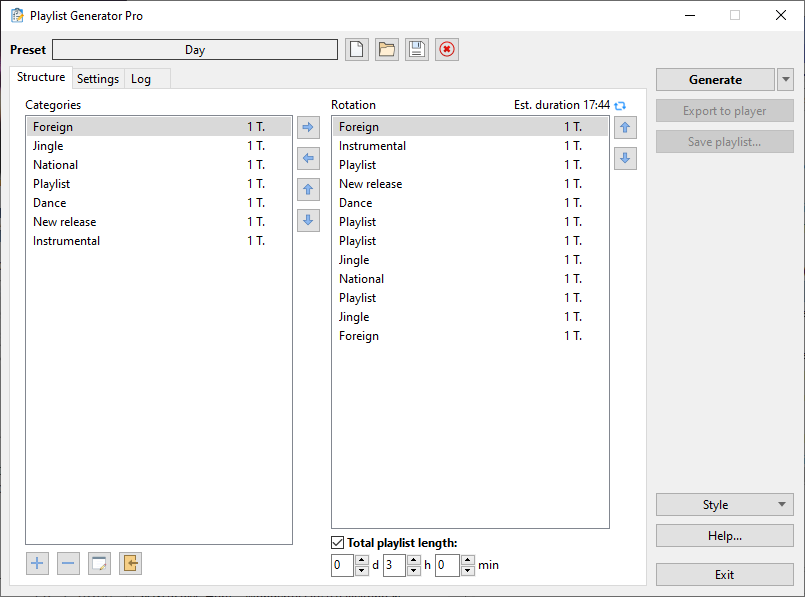
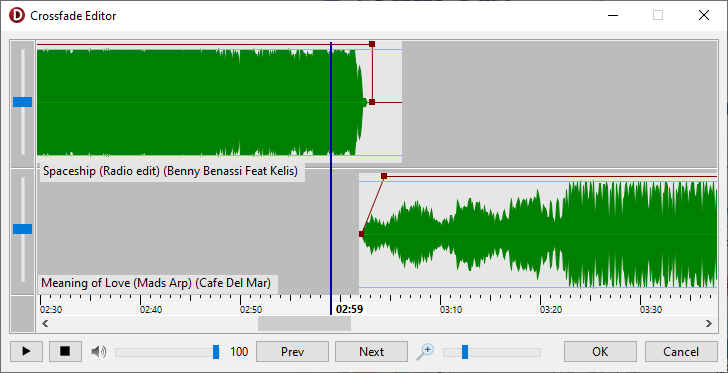
Traditional professional radio programming applications are designed for traditional radio stations that can and expect to pay thousands of dollars for extremely sophisticated and complex software. But what if that's not you?
If you need a simple, affordable, reliable solution to automating your broadcasting needs, RadioBOSS radio automation software is the solution you've been looking for.
Whether it's building and scheduling crossfaded programming for your terrestrial or Internet radio station, creating the right audio atmosphere in your restaurant or store, or broadcasting from live events, RadioBOSS has been the choice of thousands of broadcasters just like you for the past fourteen years.
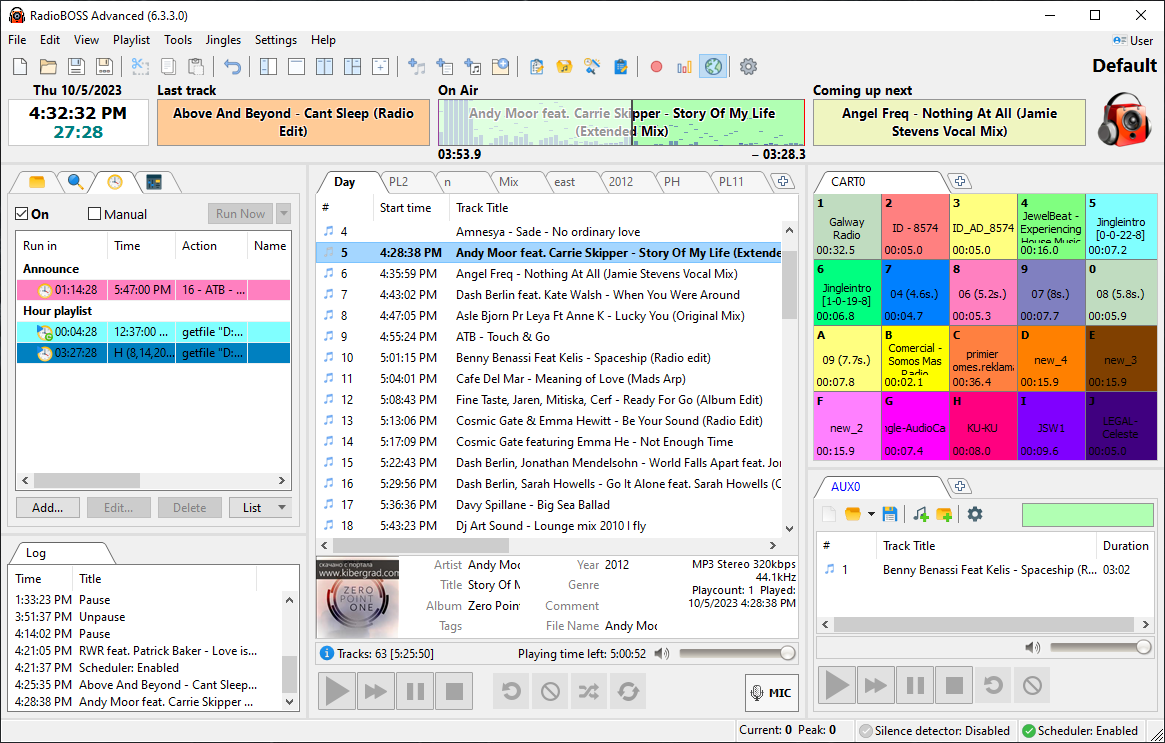
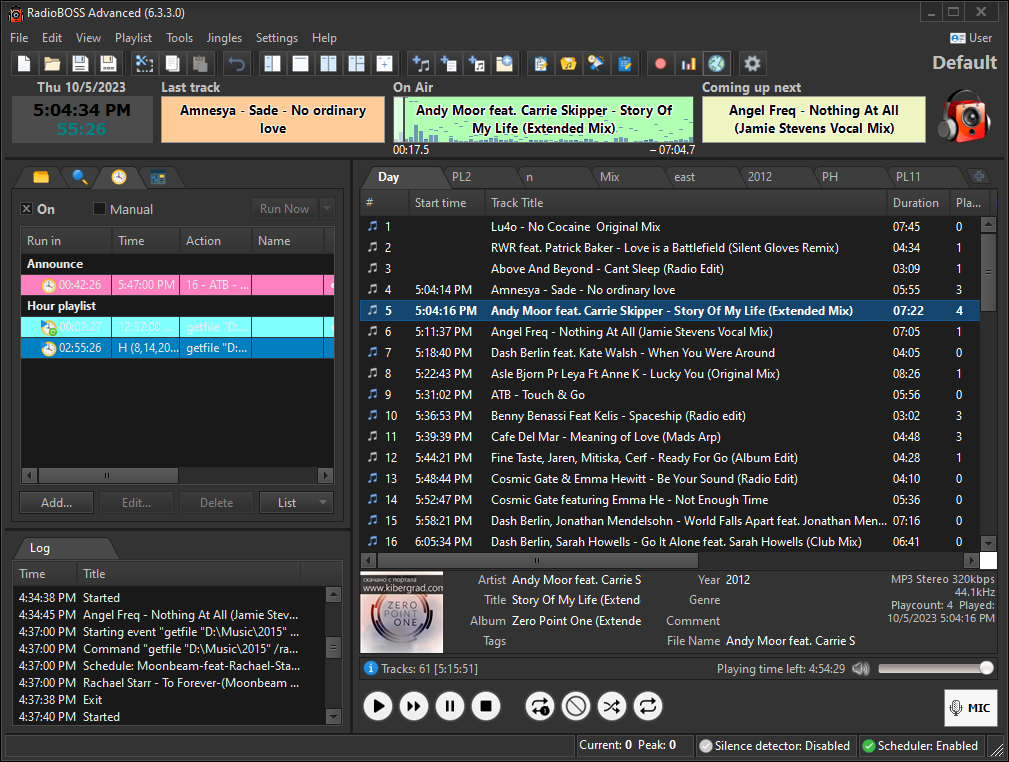
RadioBOSS makes it easy and fast to convert and manage audio assets, build playlists with advertising support, hourly blocks, rotations, crossfading, automatic leveling and other professional-level features and play your playlists to your local, terrestrial or Internet broadcasting system.
Benefits:- Produce professional, sophisticated audio programming for a fraction of the cost of other radio programming applications. Robust support for Internet broadcasters. Built-in support for Internet streaming (Shoutcast v1, v2, Icecast, Windows Media Services, RTMP), automatically sending metadata (upload to FTP, HTTP request, text or XML file) and using streamed Internet audio in playlists.
- Work the way you want. RadioBOSS lets you grab, use and work with your preferred audio formats, Winamp and VST plugins, multichannel cards (4.0, 5.1, 7.1 etc.), individualized RadioBOSS profiles, user access control.
- Create sophisticated professional playlists with crossfade support, automatic volume leveling, timed announcements, block rotations, advertising volume enhancement and more.
- RadioBOSS's twenty years of continuous improvement and enhancement means you can trust RadioBOSS to play unattended for days, weeks and months.
RADIOLOGGER - RADIO RECORDING SOFTWARE

(click to enlarge)
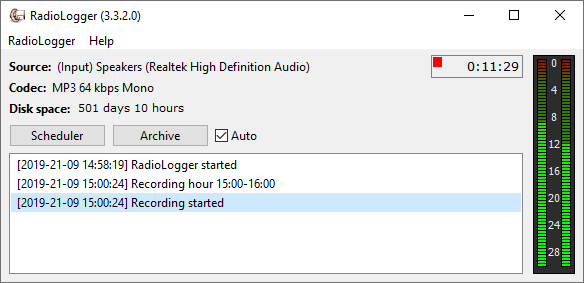
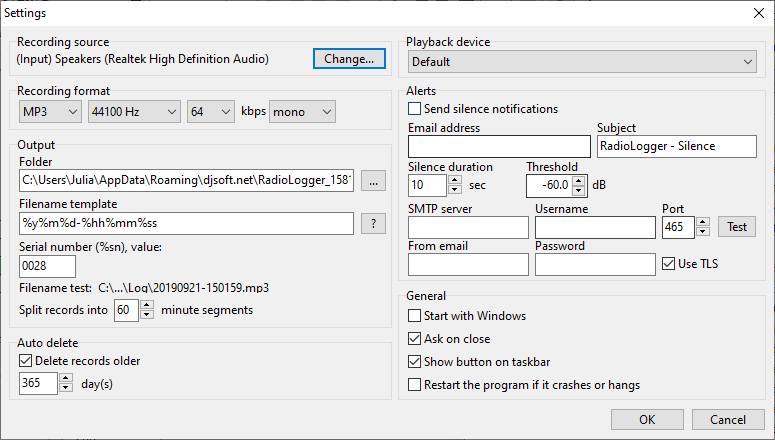
Doing radio right - whether it's creating proof of advertising fulfillment, training new staff or repurposing audio content - means you need a reliable archiving program that won't fill your hard disk or empty your wallet.
RadioLogger records your broadcasts continuously or at specified time periods using sophisticated sound compression technologies to produce very small files.
Benefits:- Set and Forget - except when you need it. RadioLogger automatically starts and stops recording when you want, encoding to mp3, ogg or any other codec on the fly without using a clunky intermediate WAV file.
- RadioLogger maintains a running history of what it records, can automatically delete old recordings and split recordings by time interval.
- RadioLogger's low CPU load, startup on Windows startup and minimize to system notification tray makes it an ideal companion to RadioBOSS.
RADIOCASTER - LIVE AUDIO ENCODER

(click to enlarge)
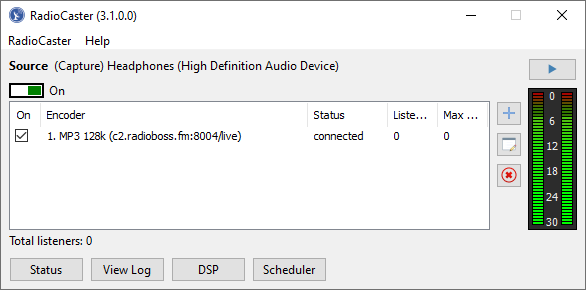
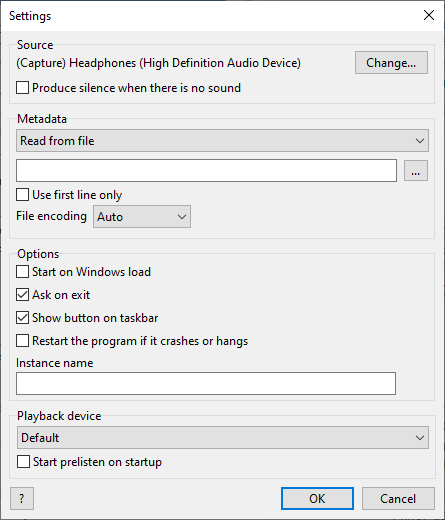
If you have a radio station and you have an internet connection, it should be easy to broadcast your content online. And now with RadioCaster, it is! RadioCaster takes the audio from any computer input or playback device and turns it into glorious internet sound that listeners can access.
No hacks, no workarounds: RadioCaster just works! With full support for latest Windows versions, transcoding, ASIO devices, metadata... It just works. You have a point-and-click, quick-to-configure tool that will instantly get your radio online to listeners in your city, on your campus, or on the other side of the world.
Benefits:- Any audio, even non-digitized, can be broadcast with no extra work.
- Save work: are you a small radio broadcaster? Leverage your existing efforts by transmitting your existing broadcasts online to new audiences.
- Features such as DSP and metadata support give your station a slick look that retains listeners.
STREAM HOSTING FOR INTERNET RADIO

We offer stream hosting services starting at $12/month: https://www.radioboss.fm
Benefits:- Feature rich control panel
- Statistic reports
- Live streaming
- 24/7 automation
- Port 80 and HTTPS streaming
- Quality customer support
- Scalable to your audience size: you can get more listeners without a worry
- Instant setup
INTERNET RADIO DIRECTORY
Listen to music from hundreds of internet radio stations streaming live right now. List your radio station.
Visit https://stations.radioboss.fm.