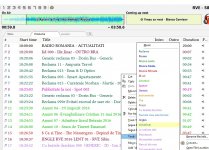
RadioBOSS can be used with screen reader software such as JAWS and NVDA. This allows people with vision impairments to use almost all RadioBOSS features. Accessibility features are available starting with RadioBOSS 5.4. Accessibility was tested with JAWS software.
This guide explains some additional RadioBOSS features to help you use it with screen reader software.
Some features that cannot yet be used with Screen Readers (limited access): Segue Editor, Advertisement Scheduler.
RadioBOSS Main Window
Please enable Screen Reader Mode. This is done only once, and then RadioBOSS will operate in screen-reader-friendly mode. To enable, press Ctrl+Shift+A, or in the menu, click View->Accessibility (Screen Reader).
Using Tab Controls (playlist zone or additional Zone 2 or Zone 3)
To focus various input areas, use Shift+F1..F9 keys (Shift+F1 will focus the Start edit field, Shift+F2 - Intro, and so on).
Please report any problems with accessibility in this topic or contact support@djsoft.net - we'll be happy to assist and make necessary changes to the software.
This guide explains some additional RadioBOSS features to help you use it with screen reader software.
Some features that cannot yet be used with Screen Readers (limited access): Segue Editor, Advertisement Scheduler.
RadioBOSS Main Window
Please enable Screen Reader Mode. This is done only once, and then RadioBOSS will operate in screen-reader-friendly mode. To enable, press Ctrl+Shift+A, or in the menu, click View->Accessibility (Screen Reader).
Using Tab Controls (playlist zone or additional Zone 2 or Zone 3)
- To navigate between tabs, use the arrow keys or Ctrl+Tab/Ctrl+Shift+Tab
- To add a tab press the "+" (plus) key on the keyboard
- To display the context menu for the selected tab press the Menu key (located near the right Ctrl)
- To close a tab (available only in the Log zone when an "overlay" event or jingle is being played), use the "-" (minus) key.
- Playlist: move the selected track up and down using the Alt+Up and Alt+Down shortcuts
- Playlist: select currently playing track: Alt+Home. To select the previous and next track, use Alt+Left Arrow and Alt+Right Arrow, respectively.
- Move the selected track up and down using the Ctrl+Up and Ctrl+Down shortcuts.
- F1 - File Explorer
- F2 - Search
- F3 - Scheduler
- F4 - DSP
- F6 - Focus active playlist (this hot key can be reassigned from the Hot Keys window)
- F7 - Jump between work zones
- Shift+F9 - Focus "Remaining time" text
- Ctrl+E - enable/disable broadcasting
- Hold the Shift key and press the Menu key to open the header menu, which allows you to select available list columns and perform sorting.
To focus various input areas, use Shift+F1..F9 keys (Shift+F1 will focus the Start edit field, Shift+F2 - Intro, and so on).
Please report any problems with accessibility in this topic or contact support@djsoft.net - we'll be happy to assist and make necessary changes to the software.
Last edited: