
Radio-Albena
Member
RadioBOSS SongSync v1.7.0
Hi everyone,
I have released a new version of RadioBOSS SongSync, including a graphical Windows setup wizard that makes the initial configuration much easier.
SongSync reads the RadioBOSS music database, creates JSON data for web applications and can automatically upload the generated files to a web server using SFTP.
It is used by my RadioBOSS Song Request System and can also provide playlist-event data for Radio Music Analytics.
The basic workflow is:
RadioBOSS → SongSync → JSON exports → SFTP → Web Server
The main improvement is the new SongSync Setup Wizard.
Instead of manually configuring everything from scratch, the wizard guides you through four sections:
1. Database
2. Exports
3. SFTP
4. Review
Database and SFTP connections can be tested before saving the configuration.
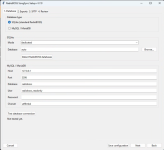
SongSync supports both database configurations commonly used with RadioBOSS:
For a standard RadioBOSS installation, select:
SQLite (standard RadioBOSS)
SongSync can help locate available RadioBOSS databases automatically.
Click:
Detect RadioBOSS databases
You can also select a database manually using Browse....
If you have more than one RadioBOSS installation or database on the computer, make sure you select the database actually used by the station you want to synchronize.
If your RadioBOSS installation uses MySQL or MariaDB, select:
MySQL / MariaDB
Enter:
The standard MySQL/MariaDB port is normally:
3306
For security, a dedicated read-only database user is recommended for SongSync.
Click:
Test database connection
Make sure the test succeeds before continuing.
SongSync needs access to the correct RadioBOSS database because this is the source for the generated catalog.
When everything is correct, click Next.
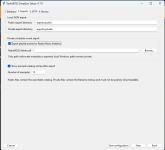
The second page configures the local JSON export directories.
The defaults are:
Public export directory
exports/public
Private export directory
exports/private
For most installations these defaults can be kept.
SongSync deliberately separates its exported data.
The public files contain information intended for applications such as the searchable song catalog.
The private files contain lookup/internal data and must not be publicly downloadable from the website.
SongSync v1.7.0 can also export playlist-event information for Radio Music Analytics.
Enable:
Export playlist events for Radio Music Analytics
and select the RadioBOSS:
Admin.sdl
file using Browse...
Only path-safe event metadata is exported. Local Windows paths remain private.
If you are not using Radio Music Analytics, simply leave this option disabled.
The option:
Show example catalog entries after export
can be enabled to display some example records after an export.
The number of examples can also be configured. The default is 10.
Click Next when finished.
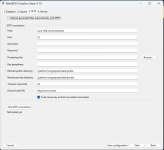
Automatic upload to a web server is optional.
To enable it, select:
Upload generated files automatically with SFTP
If you only need local JSON exports, leave this option disabled.
Enter the SFTP information provided by your hosting provider:
Host – SFTP/SSH server hostname
Port – normally 22
Username – your SFTP/SSH username
Configure the authentication information required by your server.
If you use SSH key authentication, select the private key using:
Private key file → Browse...
If your key is protected by a passphrase, enter it in:
Key passphrase
The private key stays on the Windows computer running SongSync.
The corresponding public key must be authorized by your SSH/SFTP server.
On many servers this is done through:
.ssh/authorized_keys
The exact procedure depends on your hosting provider.
Never upload, publish or include your private SSH key in a public repository.
SongSync uses separate destinations for public and private data:
Remote public directory
Destination for the public catalog data.
Remote private directory
Destination for private SongSync data.
These values are server/SFTP paths – not website URLs.
For example:
https://example.com/songrequests/data/public/
is a web URL.
The actual SFTP path leading to that directory can be completely different depending on the hosting environment.
If you are unsure, check the path using your hosting control panel, hosting documentation or an SFTP client such as FileZilla.
Again, the private directory should not be directly downloadable through the website.
SongSync maintains a known-hosts file:
sftp_known_hosts
The option:
Trust server key on first successful connection
enables Trust On First Use (TOFU).
During the first successful connection, the server key can be stored. Future connections can then verify the server against the stored information.
For a normal installation this option can usually remain enabled.
Click:
Test SFTP connection
Make sure the connection succeeds before continuing.
This makes it much easier to find configuration problems before automatic synchronization is enabled.
Check:
If necessary, testing the same connection with an SFTP client such as FileZilla can help determine whether the problem is the server credentials or the SongSync configuration.
The final Review page summarizes the configuration.
Check the database, export and SFTP settings once more.
If everything is correct, save the configuration.
I recommend running SongSync manually once after the initial setup.
Verify that:
Only after this first successful test should SongSync be scheduled for automatic operation.
Database → Test Database → Exports → SFTP → Test SFTP → Review → Save → Run SongSync manually → Verify files → Automate
Following this order makes troubleshooting much easier.
SongSync is also included in the new:
RadioBOSS Song Request Bundle v1.0.0
The bundle combines SongSync for Windows with the PHP-based RadioBOSS Song Request System.
Bundle:
https://github.com/mixnetwork1959/RadioBOSS-Song-Request-Bundle
SongSync and the Song Request Bundle are provided as free and open-source projects.
Feedback is very welcome, especially from users testing SongSync with different RadioBOSS database configurations and different web-hosting/SFTP providers.
If you encounter a problem, please include your RadioBOSS database type (SQLite or MySQL/MariaDB), Windows version and the relevant SongSync error message when reporting it.
Hi everyone,
I have released a new version of RadioBOSS SongSync, including a graphical Windows setup wizard that makes the initial configuration much easier.
SongSync reads the RadioBOSS music database, creates JSON data for web applications and can automatically upload the generated files to a web server using SFTP.
It is used by my RadioBOSS Song Request System and can also provide playlist-event data for Radio Music Analytics.
The basic workflow is:
RadioBOSS → SongSync → JSON exports → SFTP → Web Server
What's new in v1.7.0
The main improvement is the new SongSync Setup Wizard.
Instead of manually configuring everything from scratch, the wizard guides you through four sections:
1. Database
2. Exports
3. SFTP
4. Review
Database and SFTP connections can be tested before saving the configuration.
Installation and Setup Guide
Step 1 – Database
SongSync supports both database configurations commonly used with RadioBOSS:
SQLite
For a standard RadioBOSS installation, select:
SQLite (standard RadioBOSS)
SongSync can help locate available RadioBOSS databases automatically.
Click:
Detect RadioBOSS databases
You can also select a database manually using Browse....
If you have more than one RadioBOSS installation or database on the computer, make sure you select the database actually used by the station you want to synchronize.
MySQL / MariaDB
If your RadioBOSS installation uses MySQL or MariaDB, select:
MySQL / MariaDB
Enter:
- Host
- Port
- Database
- User
- Password
- Charset
The standard MySQL/MariaDB port is normally:
3306
For security, a dedicated read-only database user is recommended for SongSync.
Test the database
Click:
Test database connection
Make sure the test succeeds before continuing.
SongSync needs access to the correct RadioBOSS database because this is the source for the generated catalog.
When everything is correct, click Next.
Step 2 – Exports
The second page configures the local JSON export directories.
The defaults are:
Public export directory
exports/public
Private export directory
exports/private
For most installations these defaults can be kept.
Important: Public and private data
SongSync deliberately separates its exported data.
The public files contain information intended for applications such as the searchable song catalog.
The private files contain lookup/internal data and must not be publicly downloadable from the website.
Optional – Radio Music Analytics
SongSync v1.7.0 can also export playlist-event information for Radio Music Analytics.
Enable:
Export playlist events for Radio Music Analytics
and select the RadioBOSS:
Admin.sdl
file using Browse...
Only path-safe event metadata is exported. Local Windows paths remain private.
If you are not using Radio Music Analytics, simply leave this option disabled.
Example catalog entries
The option:
Show example catalog entries after export
can be enabled to display some example records after an export.
The number of examples can also be configured. The default is 10.
Click Next when finished.
Step 3 – SFTP
Automatic upload to a web server is optional.
To enable it, select:
Upload generated files automatically with SFTP
If you only need local JSON exports, leave this option disabled.
Connection settings
Enter the SFTP information provided by your hosting provider:
Host – SFTP/SSH server hostname
Port – normally 22
Username – your SFTP/SSH username
Configure the authentication information required by your server.
SSH private key
If you use SSH key authentication, select the private key using:
Private key file → Browse...
If your key is protected by a passphrase, enter it in:
Key passphrase
The private key stays on the Windows computer running SongSync.
The corresponding public key must be authorized by your SSH/SFTP server.
On many servers this is done through:
.ssh/authorized_keys
The exact procedure depends on your hosting provider.
Never upload, publish or include your private SSH key in a public repository.
Remote directories
SongSync uses separate destinations for public and private data:
Remote public directory
Destination for the public catalog data.
Remote private directory
Destination for private SongSync data.
These values are server/SFTP paths – not website URLs.
For example:
https://example.com/songrequests/data/public/
is a web URL.
The actual SFTP path leading to that directory can be completely different depending on the hosting environment.
If you are unsure, check the path using your hosting control panel, hosting documentation or an SFTP client such as FileZilla.
Again, the private directory should not be directly downloadable through the website.
SSH server fingerprint / TOFU
SongSync maintains a known-hosts file:
sftp_known_hosts
The option:
Trust server key on first successful connection
enables Trust On First Use (TOFU).
During the first successful connection, the server key can be stored. Future connections can then verify the server against the stored information.
For a normal installation this option can usually remain enabled.
Test SFTP before continuing
Click:
Test SFTP connection
Make sure the connection succeeds before continuing.
This makes it much easier to find configuration problems before automatic synchronization is enabled.
If the SFTP test fails
Check:
- Hostname
- SFTP/SSH port
- Username
- Password/key configuration
- Selected private key
- Public-key authorization on the server
- Remote directory permissions
- Whether SFTP/SSH is enabled by your hosting provider
If necessary, testing the same connection with an SFTP client such as FileZilla can help determine whether the problem is the server credentials or the SongSync configuration.
Step 4 – Review and Save
The final Review page summarizes the configuration.
Check the database, export and SFTP settings once more.
If everything is correct, save the configuration.
I recommend running SongSync manually once after the initial setup.
Verify that:
- The correct RadioBOSS database is read
- JSON files are generated
- Public and private exports are created
- SFTP upload succeeds, if enabled
- Files arrive in the correct server directories
- Private files are not publicly accessible
Only after this first successful test should SongSync be scheduled for automatic operation.
Recommended setup order
Database → Test Database → Exports → SFTP → Test SFTP → Review → Save → Run SongSync manually → Verify files → Automate
Following this order makes troubleshooting much easier.
Song Request Bundle
SongSync is also included in the new:
RadioBOSS Song Request Bundle v1.0.0
The bundle combines SongSync for Windows with the PHP-based RadioBOSS Song Request System.
Bundle:
https://github.com/mixnetwork1959/RadioBOSS-Song-Request-Bundle
Free and Open Source
SongSync and the Song Request Bundle are provided as free and open-source projects.
Feedback is very welcome, especially from users testing SongSync with different RadioBOSS database configurations and different web-hosting/SFTP providers.
If you encounter a problem, please include your RadioBOSS database type (SQLite or MySQL/MariaDB), Windows version and the relevant SongSync error message when reporting it.