
How to use Winamp DSP plugins in RadioBOSS.
Because Winamp DSP plugins are all 32-bit, they can only be used with a 32-bit installation of RadioBOSS. The 64-bit version of RadioBOSS does not support Winamp plugins.
Almost any Winamp DSP plugin can be used with RadioBOSS. This example shows how to set up the StereoTool plugin (https://www.stereotool.com/).
1. Download the plugin: https://www.stereotool.com/download/dsp_stereo_tool_installer.exe
2. Run the installer (dsp_stereo_tool_installer.exe) and install it to any custom folder, eg. C:\StereoTool
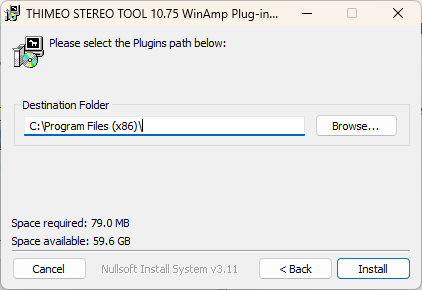
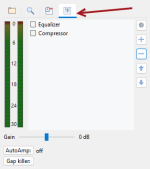
3. Run RadioBOSS. Select FX tab on the left.
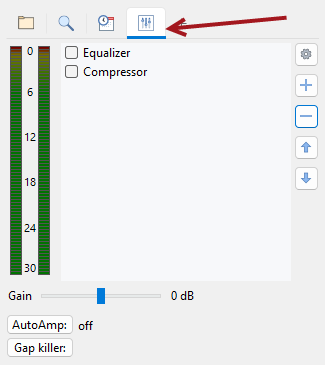
4. Click the "+" button to add a new DSP.
5. Click "open plugins folder" link to open the plugins folder
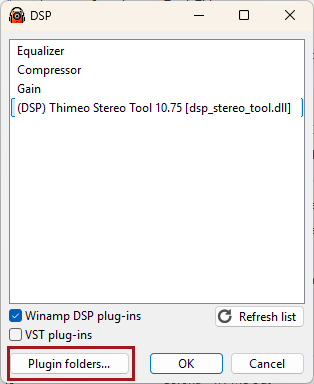
6. Copy dsp_stereo_tool.dll from C:\StereoTool to that folder.
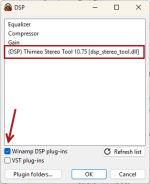
7. Check the "Winamp DSP Plug-ins" checkbox - you'll see Stereo Tool in the list.
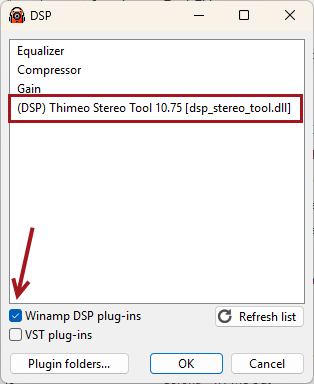
8. Select the Stereo Tool plugin in the list and click OK.
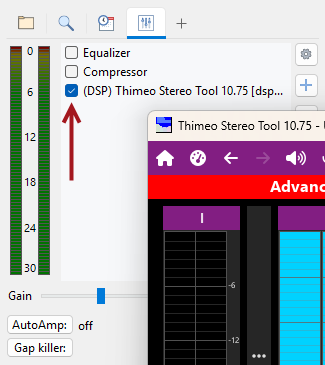
9. Turn on the plugin in the DSP list. Stereo Tool configuration window will appear.
Because Winamp DSP plugins are all 32-bit, they can only be used with a 32-bit installation of RadioBOSS. The 64-bit version of RadioBOSS does not support Winamp plugins.
Almost any Winamp DSP plugin can be used with RadioBOSS. This example shows how to set up the StereoTool plugin (https://www.stereotool.com/).
1. Download the plugin: https://www.stereotool.com/download/dsp_stereo_tool_installer.exe
2. Run the installer (dsp_stereo_tool_installer.exe) and install it to any custom folder, eg. C:\StereoTool
3. Run RadioBOSS. Select FX tab on the left.
4. Click the "+" button to add a new DSP.
5. Click "open plugins folder" link to open the plugins folder
6. Copy dsp_stereo_tool.dll from C:\StereoTool to that folder.
7. Check the "Winamp DSP Plug-ins" checkbox - you'll see Stereo Tool in the list.
8. Select the Stereo Tool plugin in the list and click OK.
9. Turn on the plugin in the DSP list. Stereo Tool configuration window will appear.
Attachments
Last edited:


