

S.G
Member
Mal eine Freudige Nachricht ein 4 Jahre Altes Problem mit dem VLC - Player ist gelöst
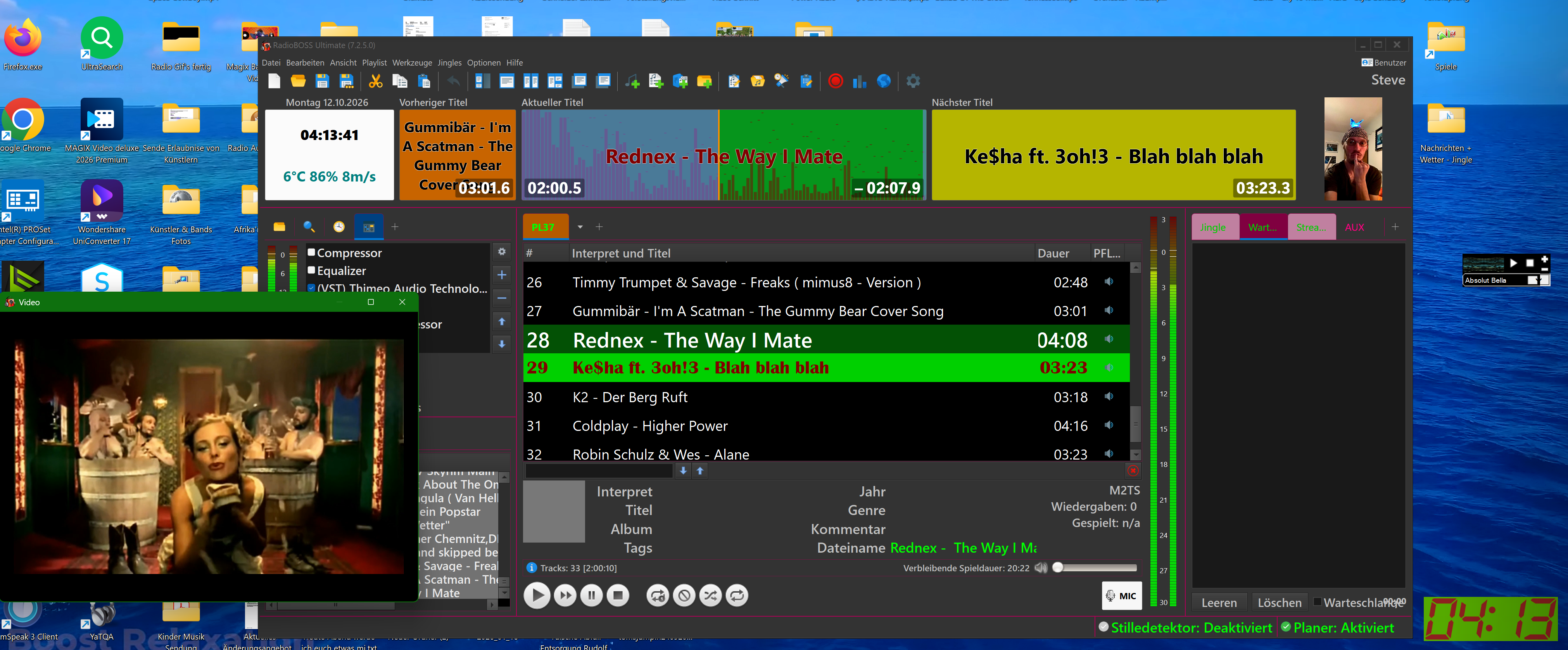
Ich Arbeite im Betriebssystem ja mit einer Auflösung von " 4096x2162 " und da kam es immer zu dem Problem der Auflösungsanzeige im VLC- Plugin , Das Video war immer nur ein Drittel Bildfläche und der Ton war nie Synchrone zu bekommen ...... jetzt gibts das Problem nicht mehr , zu mindest nicht mehr bei mir
 .
.
Zu dem konnte ich bei mir die Leistungsfähigkeit und Qualität der Audio Ebene gleich auch noch verbessern .
Ich muss aber auch gleich dazu sagen das ist echt keine Leichte Kost denn man muss vieles im Betriebssystem umarbeiten aber auch auf Verschiedenen Software Komponenten !
Z.B. K-Lite Codec , Radio Boss , Vulkane SDK , Farbprofiele , Windows rundll.32 und noch einiges mehr aber dafür Arbeitet jetzt mein Betriebssystem und auch die Softwares jetzt mit einem Farbprofiel " ITU-R_BT2020-beta.icc + ITU-R_BT2020-beta.png " und das Audio System mit " s:r=96000_-b:a=32,1024000_-ac=6 " .
Dafür benötigt ihr unteranderem follgende Befehlsketten :
--disk-cache=5000000000_--enable-gpl\C:\ffmpeg-2025\bin\ffmpeg.exe__-c:a_libfdk_aac_lc_-s:r=96000_-b:a=32,1024000_-ac=6_--enable-C:\ffmpeg-2025\bin\ffmpeg.exe_--C:\VulkanSDK\1.4.363.0\Bin\vkconfig-gui-exe
Und die gekürzte Kette :
--enable-gpl\C:\ffmpeg-2025\bin\ffmpeg.exe__-c:a_libfdk_aac_lc_-s:r=96000_-b:a=32,1024000_-ac=6_--C:\ffmpeg-2025\bin\ffmpeg.exe_--C:\VulkanSDK\1.4.363.0\Bin\vkconfig-gui-exe
Und das ist die Kette für die OBS Studio Software :
--disk-cache=5000000000_--enable-gpl\C:\ffmpeg-2025\bin\ffmpeg.exe__-c:a_libfdk_aac_lc_-s:r=96000_-b:a=32,1024000_-ac=6_--C:\ffmpeg-2025\bin\ffmpeg.exe_--C:\VulkanSDK\1.4.363.0\Bin\vkconfig-gui-exe
Und das ist die Kette für die " rundll.32 " :
--enable-gpl\C:\ffmpeg-2025\bin\ffmpeg.exe__-c:a_libfdk_aac_lc_-s:r=96000_-b:a=32,1024000_-ac=6_--C:\ffmpeg-2025\bin\ffmpeg.exe
na ich wünsche euch viel Spaß beim Basteln !
Ich werde wenn es mir mal zu langweilig ist auch ein Video dazu machen aber mal sehen den das ist echt viel Arbeit und das muss ich mir überlegen .... lol .
Aber wer will kann sich schonmal eine Erste Testsendung mit den letzteren Einstellungen ansehen zumindest bin ich da schon sehr weit gekommen aber immerhin konnte Ich da die Musikvideos schon mit übertragen ohne den 4 Jahre Alten Bildfehler ..... Bitte nicht irritieren lassen das Video Material ist vom Radio Boss " VLC-Plugin " in die OBS übertragen und besitzt deshalb keine Bild Synchronität es soll nur die saubere Machbarkeit belegen
 .
.
Hier der Link zur Radio Video Sendung mit Musikvideos :
Link 1 : https://www.youtube.com/watch?v=KLy0mlsX0zo&list=PLW91sBRt1dHNHW1W6wyYH578tv1T5hgkm&index=9
Link 2 : https://www.youtube.com/watch?v=1p6TGz5Ee5s&list=PLW91sBRt1dHNHW1W6wyYH578tv1T5hgkm&index=10
Google Übersetzer :
Some good news! A four-year-old problem with the VLC player has been solved.
I was working with a resolution of 4096x2162 in my operating system, and I kept running into problems with the resolution display in the VLC plugin. The video was always only a third of the screen, and the audio was never in sync. Now the problem is gone, at least for me!
I was also able to improve the performance and quality of the audio.
I should mention, though, that this isn't exactly easy, as it requires a lot of work in the operating system and on various software components!
``` For example, K-Lite Codec, Radio Boss, Vulkan SDK, color profiles, Windows rundll.32, and much more, but now my operating system and software are working with the color profile "ITU-R_BT2020-beta.icc + ITU-R_BT2020-beta.png" and the audio system with "s:r=96000_-b:a=32,1024000_-ac=6".
``` For this, you will need, among other things, the following command sequences:
--disk-cache=5000000000_--enable-gpl\C:\ffmpeg-2025\bin\ffmpeg.exe__-c:a_libfdk_aac_lc_-s:r=96000_-b:a=32,1024000_-ac=6_--enable-C:\ffmpeg-2025\bin\ffmpeg.exe_--C:\VulkanSDK\1.4.363.0\Bin\vkconfig-gui-exe
And the shortened sequence :
--enable-gpl\C:\ffmpeg-2025\bin\ffmpeg.exe__-c:a_libfdk_aac_lc_-s:r=96000_-b:a=32,1024000_-ac=6_--C:\ffmpeg-2025\bin\ffmpeg.exe_--C:\VulkanSDK\1.4.363.0\Bin\vkconfig-gui-exe
And this is the chain for the OBS Studio software:
``` --disk-cache=5000000000_--enable-gpl\C:\ffmpeg-2025\bin\ffmpeg.exe__-c:a_libfdk_aac_lc_-s:r=96000_-b:a=32,1024000_-ac=6_--C:\ffmpeg-2025\bin\ffmpeg.exe_--C:\VulkanSDK\1.4.363.0\Bin\vkconfig-gui-exe
And this is the chain for "rundll.32":
``` --enable-gpl\C:\ffmpeg-2025\bin\ffmpeg.exe__-c:a_libfdk_aac_lc_-s:r=96000_-b:a=32,1024000_-ac=6_--C:\ffmpeg-2025\bin\ffmpeg.exe
Well, I hope you have fun tinkering!
I'll make a video about it if I get bored, but we'll see, because it's a lot of work and I need to think about it... lol.
... But anyone who wants to can watch a first test broadcast with these settings. I've already made good progress, and at least I was able to transmit the music videos without the four-year-old image error... Please don't be confused; the video material is from the Radio Boss "VLC plugin" transferred to OBS and therefore doesn't have perfect image synchronization. It's just meant to demonstrate that it's possible.
Here's the link to the radio video broadcast with music videos:
Link 1: https://www.youtube.com/watch?v=KLy0mlsX0zo&list=PLW91sBRt1dHNHW1W6wyYH578tv1T5hgkm&index=9
Link 2: https://www.youtube.com/watch?v=1p6TGz5Ee5s&list=PLW91sBRt1dHNHW1W6wyYH578tv1T5hgkm&index=10
Ich Arbeite im Betriebssystem ja mit einer Auflösung von " 4096x2162 " und da kam es immer zu dem Problem der Auflösungsanzeige im VLC- Plugin , Das Video war immer nur ein Drittel Bildfläche und der Ton war nie Synchrone zu bekommen ...... jetzt gibts das Problem nicht mehr , zu mindest nicht mehr bei mir
.Zu dem konnte ich bei mir die Leistungsfähigkeit und Qualität der Audio Ebene gleich auch noch verbessern .
Ich muss aber auch gleich dazu sagen das ist echt keine Leichte Kost denn man muss vieles im Betriebssystem umarbeiten aber auch auf Verschiedenen Software Komponenten !
Z.B. K-Lite Codec , Radio Boss , Vulkane SDK , Farbprofiele , Windows rundll.32 und noch einiges mehr aber dafür Arbeitet jetzt mein Betriebssystem und auch die Softwares jetzt mit einem Farbprofiel " ITU-R_BT2020-beta.icc + ITU-R_BT2020-beta.png " und das Audio System mit " s:r=96000_-b:a=32,1024000_-ac=6 " .
Dafür benötigt ihr unteranderem follgende Befehlsketten :
--disk-cache=5000000000_--enable-gpl\C:\ffmpeg-2025\bin\ffmpeg.exe__-c:a_libfdk_aac_lc_-s:r=96000_-b:a=32,1024000_-ac=6_--enable-C:\ffmpeg-2025\bin\ffmpeg.exe_--C:\VulkanSDK\1.4.363.0\Bin\vkconfig-gui-exe
Und die gekürzte Kette :
--enable-gpl\C:\ffmpeg-2025\bin\ffmpeg.exe__-c:a_libfdk_aac_lc_-s:r=96000_-b:a=32,1024000_-ac=6_--C:\ffmpeg-2025\bin\ffmpeg.exe_--C:\VulkanSDK\1.4.363.0\Bin\vkconfig-gui-exe
Und das ist die Kette für die OBS Studio Software :
--disk-cache=5000000000_--enable-gpl\C:\ffmpeg-2025\bin\ffmpeg.exe__-c:a_libfdk_aac_lc_-s:r=96000_-b:a=32,1024000_-ac=6_--C:\ffmpeg-2025\bin\ffmpeg.exe_--C:\VulkanSDK\1.4.363.0\Bin\vkconfig-gui-exe
Und das ist die Kette für die " rundll.32 " :
--enable-gpl\C:\ffmpeg-2025\bin\ffmpeg.exe__-c:a_libfdk_aac_lc_-s:r=96000_-b:a=32,1024000_-ac=6_--C:\ffmpeg-2025\bin\ffmpeg.exe
na ich wünsche euch viel Spaß beim Basteln !
Ich werde wenn es mir mal zu langweilig ist auch ein Video dazu machen aber mal sehen den das ist echt viel Arbeit und das muss ich mir überlegen .... lol .
Aber wer will kann sich schonmal eine Erste Testsendung mit den letzteren Einstellungen ansehen zumindest bin ich da schon sehr weit gekommen aber immerhin konnte Ich da die Musikvideos schon mit übertragen ohne den 4 Jahre Alten Bildfehler ..... Bitte nicht irritieren lassen das Video Material ist vom Radio Boss " VLC-Plugin " in die OBS übertragen und besitzt deshalb keine Bild Synchronität es soll nur die saubere Machbarkeit belegen
.Hier der Link zur Radio Video Sendung mit Musikvideos :
Link 1 : https://www.youtube.com/watch?v=KLy0mlsX0zo&list=PLW91sBRt1dHNHW1W6wyYH578tv1T5hgkm&index=9
Link 2 : https://www.youtube.com/watch?v=1p6TGz5Ee5s&list=PLW91sBRt1dHNHW1W6wyYH578tv1T5hgkm&index=10
Google Übersetzer :
Some good news! A four-year-old problem with the VLC player has been solved.
I was working with a resolution of 4096x2162 in my operating system, and I kept running into problems with the resolution display in the VLC plugin. The video was always only a third of the screen, and the audio was never in sync. Now the problem is gone, at least for me!
I was also able to improve the performance and quality of the audio.
I should mention, though, that this isn't exactly easy, as it requires a lot of work in the operating system and on various software components!
``` For example, K-Lite Codec, Radio Boss, Vulkan SDK, color profiles, Windows rundll.32, and much more, but now my operating system and software are working with the color profile "ITU-R_BT2020-beta.icc + ITU-R_BT2020-beta.png" and the audio system with "s:r=96000_-b:a=32,1024000_-ac=6".
``` For this, you will need, among other things, the following command sequences:
--disk-cache=5000000000_--enable-gpl\C:\ffmpeg-2025\bin\ffmpeg.exe__-c:a_libfdk_aac_lc_-s:r=96000_-b:a=32,1024000_-ac=6_--enable-C:\ffmpeg-2025\bin\ffmpeg.exe_--C:\VulkanSDK\1.4.363.0\Bin\vkconfig-gui-exe
And the shortened sequence :
--enable-gpl\C:\ffmpeg-2025\bin\ffmpeg.exe__-c:a_libfdk_aac_lc_-s:r=96000_-b:a=32,1024000_-ac=6_--C:\ffmpeg-2025\bin\ffmpeg.exe_--C:\VulkanSDK\1.4.363.0\Bin\vkconfig-gui-exe
And this is the chain for the OBS Studio software:
``` --disk-cache=5000000000_--enable-gpl\C:\ffmpeg-2025\bin\ffmpeg.exe__-c:a_libfdk_aac_lc_-s:r=96000_-b:a=32,1024000_-ac=6_--C:\ffmpeg-2025\bin\ffmpeg.exe_--C:\VulkanSDK\1.4.363.0\Bin\vkconfig-gui-exe
And this is the chain for "rundll.32":
``` --enable-gpl\C:\ffmpeg-2025\bin\ffmpeg.exe__-c:a_libfdk_aac_lc_-s:r=96000_-b:a=32,1024000_-ac=6_--C:\ffmpeg-2025\bin\ffmpeg.exe
Well, I hope you have fun tinkering!
I'll make a video about it if I get bored, but we'll see, because it's a lot of work and I need to think about it... lol.
... But anyone who wants to can watch a first test broadcast with these settings. I've already made good progress, and at least I was able to transmit the music videos without the four-year-old image error... Please don't be confused; the video material is from the Radio Boss "VLC plugin" transferred to OBS and therefore doesn't have perfect image synchronization. It's just meant to demonstrate that it's possible
.Here's the link to the radio video broadcast with music videos:
Link 1: https://www.youtube.com/watch?v=KLy0mlsX0zo&list=PLW91sBRt1dHNHW1W6wyYH578tv1T5hgkm&index=9
Link 2: https://www.youtube.com/watch?v=1p6TGz5Ee5s&list=PLW91sBRt1dHNHW1W6wyYH578tv1T5hgkm&index=10

