
How to use VST plugins in RadioBOSS.
Almost any VST plugin can be used with RadioBOSS except for shell VST plugins. This example shows how to set up the StereoTool VST plugin (https://www.stereotool.com/).
Note! The plugin architecture must match RadioBOSS's architecture; that is, use a 32-bit plugin for RadioBOSS 32-bit. You can view the RadioBOSS architecture by clicking Help > About. If it says at the top "RadioBOSS a.b.c.d x64" then you have a 64-bit version, otherwise it's x86.
1. Download a plugin, for this example, we use a 32-bit RadioBOSS, and 32-bit plugin for Windows: https://download.thimeo.com/vst_stereo_tool.dll
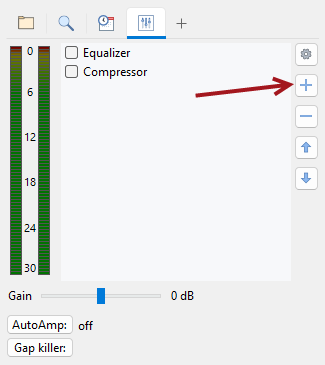
2. Run RadioBOSS. Select the FX tab on the left and click the "+" button to add a new DSP
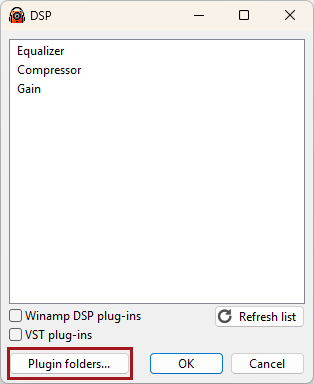
3. Click the Plugin Folders button
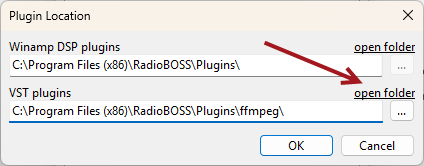
4. Click the "open folder" link for the VST folder. The Windows Explorer window will open
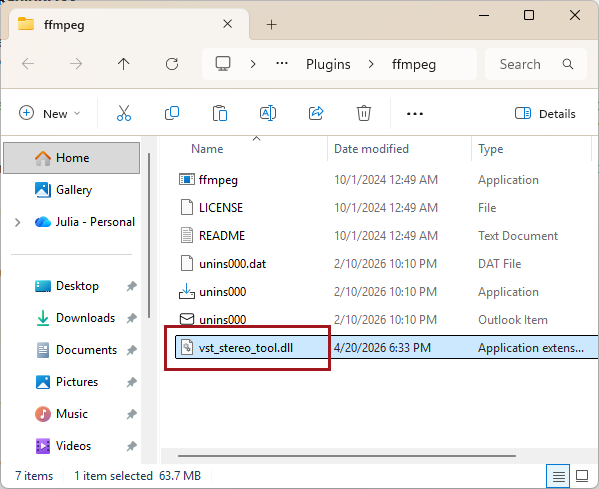
5. Copy the "vst_stereo_tool.dll" file to that folder
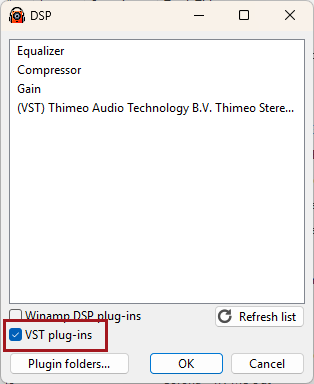
6. Check the "VST plug-ins" checkbox. All supported plugins will be listed. Select Stereo Tool and click OK.
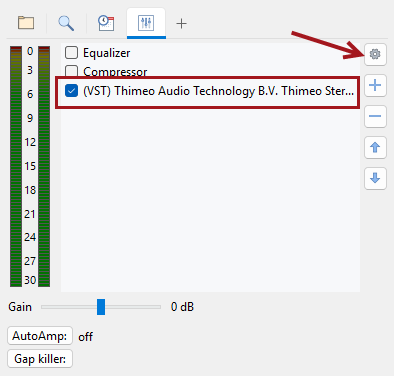
7. The plugin will appear in the list. Enable it and click the configure button to edit its parameters.
Almost any VST plugin can be used with RadioBOSS except for shell VST plugins. This example shows how to set up the StereoTool VST plugin (https://www.stereotool.com/).
Note! The plugin architecture must match RadioBOSS's architecture; that is, use a 32-bit plugin for RadioBOSS 32-bit. You can view the RadioBOSS architecture by clicking Help > About. If it says at the top "RadioBOSS a.b.c.d x64" then you have a 64-bit version, otherwise it's x86.
1. Download a plugin, for this example, we use a 32-bit RadioBOSS, and 32-bit plugin for Windows: https://download.thimeo.com/vst_stereo_tool.dll
2. Run RadioBOSS. Select the FX tab on the left and click the "+" button to add a new DSP
3. Click the Plugin Folders button
4. Click the "open folder" link for the VST folder. The Windows Explorer window will open
5. Copy the "vst_stereo_tool.dll" file to that folder
6. Check the "VST plug-ins" checkbox. All supported plugins will be listed. Select Stereo Tool and click OK.
7. The plugin will appear in the list. Enable it and click the configure button to edit its parameters.
Attachments
Last edited by a moderator:


